
Need a bright banner for a sale, an event flyer, or a social media post, but no designer around? With AliveColors, you can generate a ready-to-use promo material complete with text in just minutes. All you need is Cloud Generation and a well-crafted prompt.
In this tutorial, we'll walk through how to create ad banners, flyers and posts with headlines, dates and calls to action - without leaving the graphics editor.
Unlike local generation, cloud generation doesn't require a powerful GPU - all computations run on a remote server. That means you can work even on a laptop and still get high-quality results.
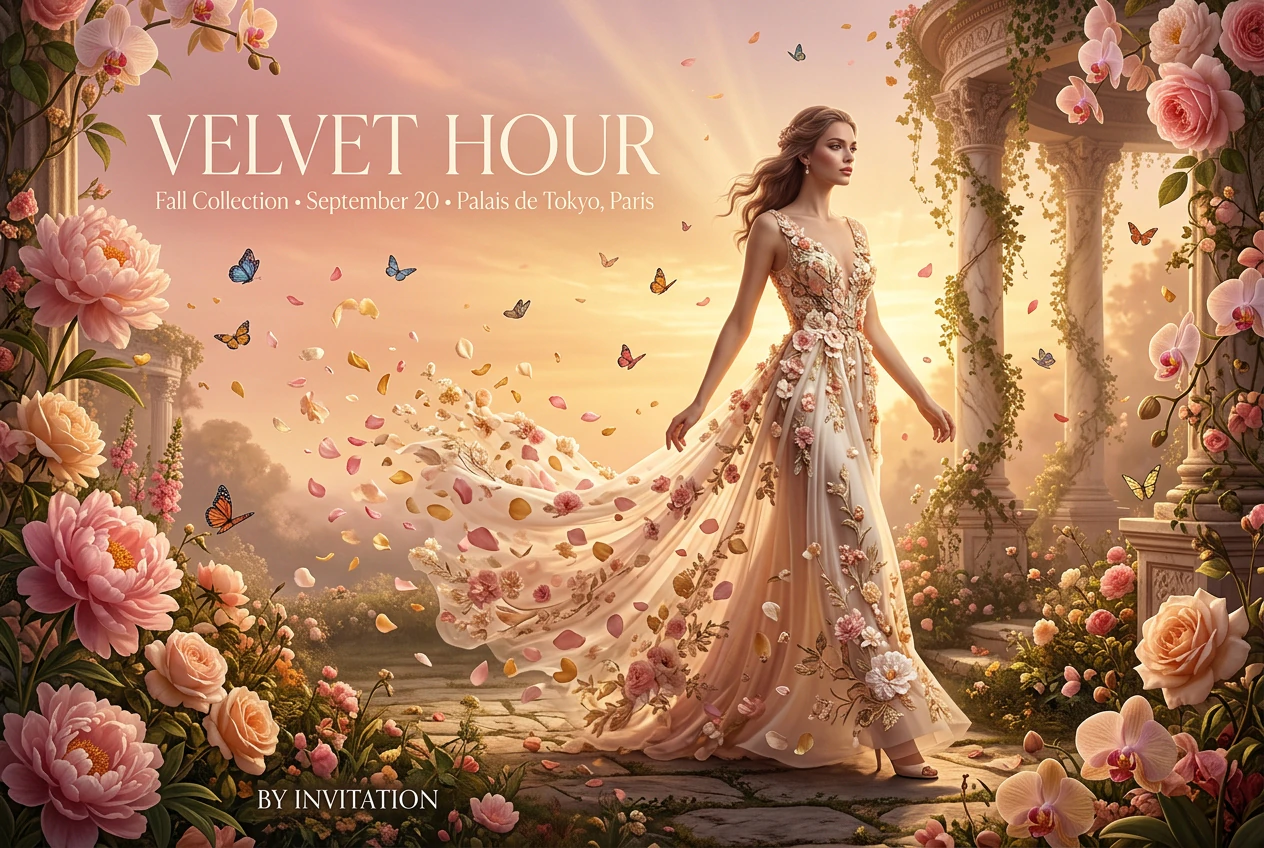 A ready banner
What you'll need
- Installed graphics editor AliveColors.
- An account to access cloud generation.
- A clear idea of what you're promoting: an event, product, service or brand.
- The text that should appear on the banner: headline, subheadline, date, location, call to action.
Where to start: plan your layout
Before opening AliveColors, decide on the format and content of your promo material. A neural network can't read your mind - the more precisely you describe your idea, the better the result will be.
Ask yourself a few questions:
- Format: horizontal banner (1920×1080), square post (1080×1080), vertical story (1080×1920) or flyer (1080×1350).
- Target audience: who is this banner for - young people, businesses, parents?
- Main message: what should a person understand in the first second?
- Text: headline, subheadline, date, location, CTA button.
- Style: minimalism, bold pop art, premium, futurism, retro.
Launch AliveColors and create a new document of the required size via File → New. This will help you see right away how the composition will look.
Tip: don't try to cram everything into one banner. One strong accent + short text works better than ten small details.
Cloud generation
To create promo materials, we'll use Cloud Generation - it doesn't load your computer and handles typography well, which is critical for banners with text.
Go to the AI menu → Cloud Generation. A settings panel will open.
Select the Text-to-Image mode - in this case, the image is created from scratch based on your prompt. This mode is best suited for promo materials: you have full control over the composition and text.
Write your prompt. A prompt is a text description of what we want to see. To get a convincing banner with readable text, it's not enough to write "make an ad." The more detailed you describe the layout, style and wording, the more accurately the neural network will convey your idea.
A good prompt for a promo material should include:
- Format and purpose: "horizontal ad banner," "square Instagram post," "vertical event flyer."
- Composition: where the text goes, where the visual object goes, what's in the center of attention.
- Text on the image: exact wording in quotes - headline, subheadline, date, location, CTA.
- Style and mood: minimalism, neon, watercolor, gradient, premium, retro poster.
- Color palette: "dark blue with gold," "bright orange and white," "pastel tones."
- Technical details: "high quality," "clean typography," "lots of whitespace," "professional design."
Prompt examples for different tasks
Sale banner: "Horizontal ad banner for a clothing sale. On the left, a large headline '50% OFF', below it 'Only 3 days', a 'Buy now' button. On the right, a stylish photo of a girl in an autumn coat. Colors: terracotta, beige, white. Minimalism, lots of whitespace, premium typography, high quality."
Concert flyer: "Vertical flyer for a music concert. In the center, a silhouette of a guitarist against a stage with neon light. At the top, the headline 'ROCK NIGHT', below 'August 15 • Cosmos Club', at the bottom a 'Tickets' button. Colors: black, purple, neon pink. Drive, energy, modern poster."
Instagram post: "Square social media post about a free webinar. Light background, in the center a laptop with charts, surrounded by 3D icons. Headline 'Free Webinar', subheadline 'How to boost sales', date 'May 20 at 7 PM', button 'Sign up'. Colors: blue, lime, white. Clean, modern, clear."
Business breakfast: "Horizontal banner for a business breakfast. On the left, text: 'Business Breakfast', 'Networking for entrepreneurs', 'Moscow • June 12', button 'Register'. On the right, a photo of people at a table with coffee. Colors: dark green, beige, gold. Elegant, premium, calm."
If writing a detailed prompt on your own is difficult, use this lifehack: describe your idea in plain words in any text-based neural network and ask: "Write a detailed prompt for generating an ad banner. Include the format, composition, text on the image, style and color palette." Copy the resulting text into the prompt field in AliveColors.
We'll use the following prompt:
"Horizontal banner for a fashion show 'VELVET HOUR'. Style: romantic, surreal, botanical, high fashion. Composition: a dreamlike garden at golden hour with oversized blooming flowers - roses, peonies, orchids - growing around and above the frame. In the center - a tall elegant female figure in a flowing floral couture gown, dress dissolving into petals mid-air. Around her - floating butterflies, vines climbing marble columns, faint rays of sunset light. Headline 'VELVET HOUR' in thin serif capitals, ivory, placed upper left, followed by 'Fall Collection • September 20 • Palais de Tokyo, Paris' in small letters, and 'BY INVITATION' at the bottom left. Background: soft gradient from blush pink to warm gold, floating petals, dreamy haze. Colors: blush pink, warm gold, sage green, ivory. Romantic, surreal, cinematic, 8K."
Choosing a model
Select a suitable model from the dropdown list. There's no universal leader - each model excels at its own thing:
- Nano Banana 2.1 - fast and precise at rendering text. Supports up to 14 references for maintaining brand style, and builds composition well. Ideal for serial banners and adaptations for different platforms.
- GPT Image 2 - the most accurate at rendering text. Ideal for complex layouts where every letter matters: headline, date, address, CTA.
After choosing a model, configure its parameters:
- Resolution - 4K for print and large screens, 2K for web and social media.
- Format - PNG so the text stays sharp.
- Aspect ratio - 16:9 for banner, 1:1 for post, 9:16 for story, 4:5 for flyer.
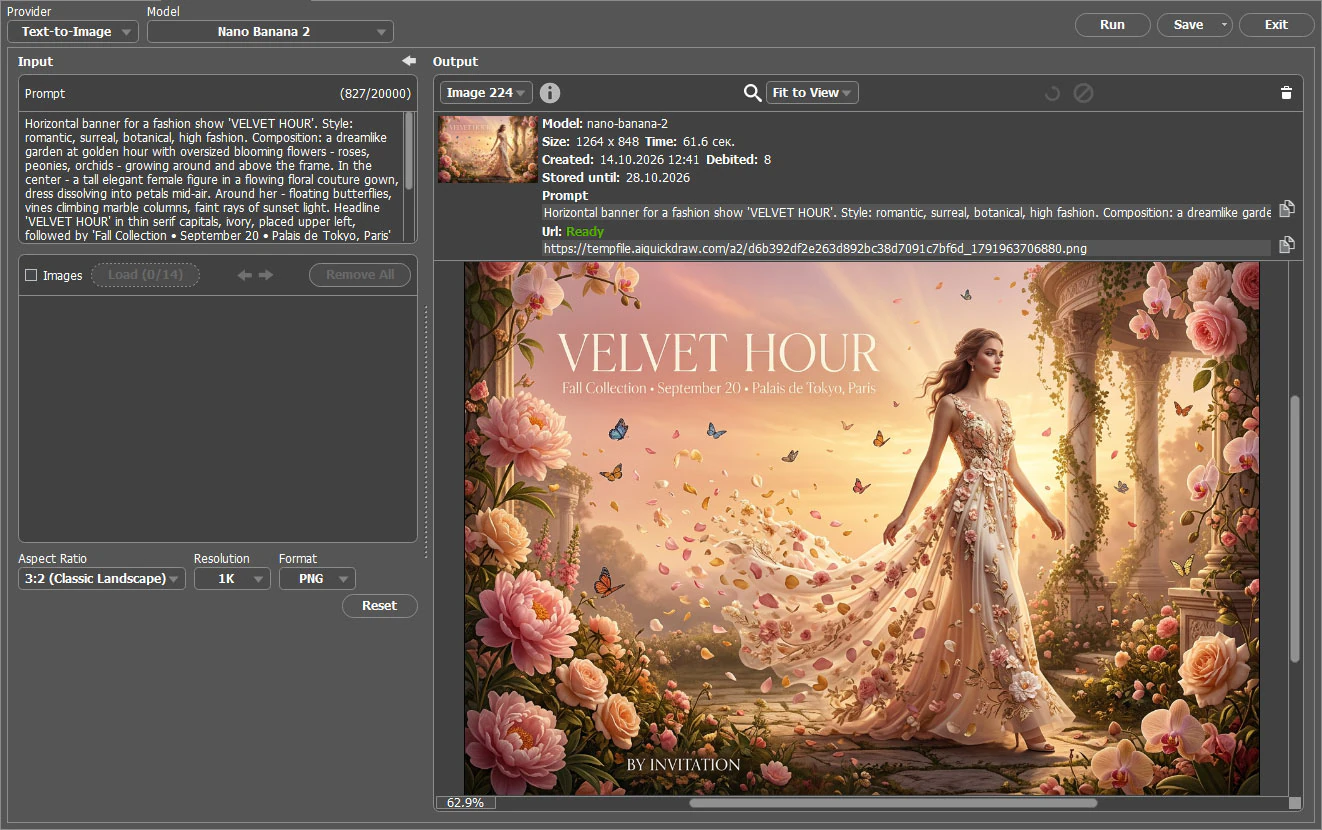 Cloud generation settings for promo
Click the Start button and wait for the result. Cloud generation usually takes 10 to 60 seconds - the exact time depends on server load.
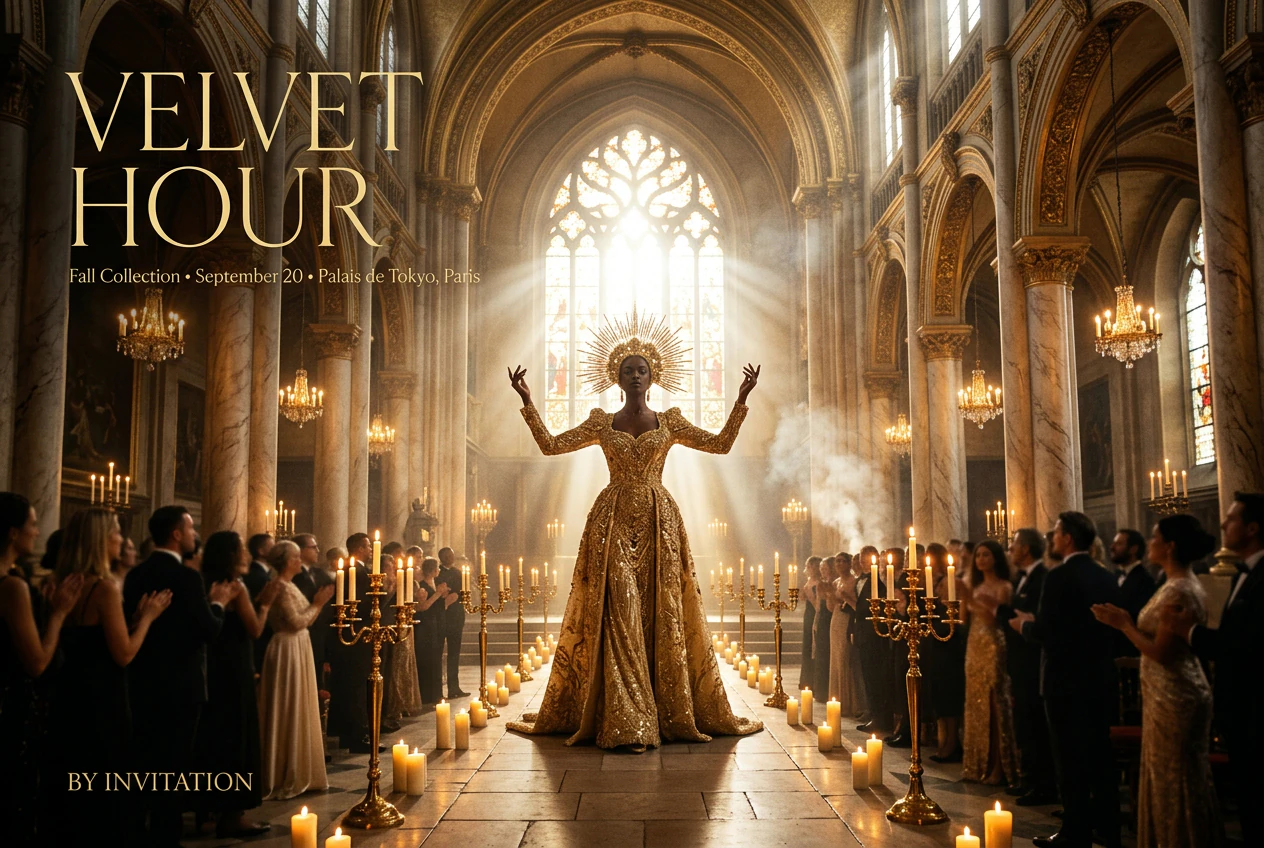
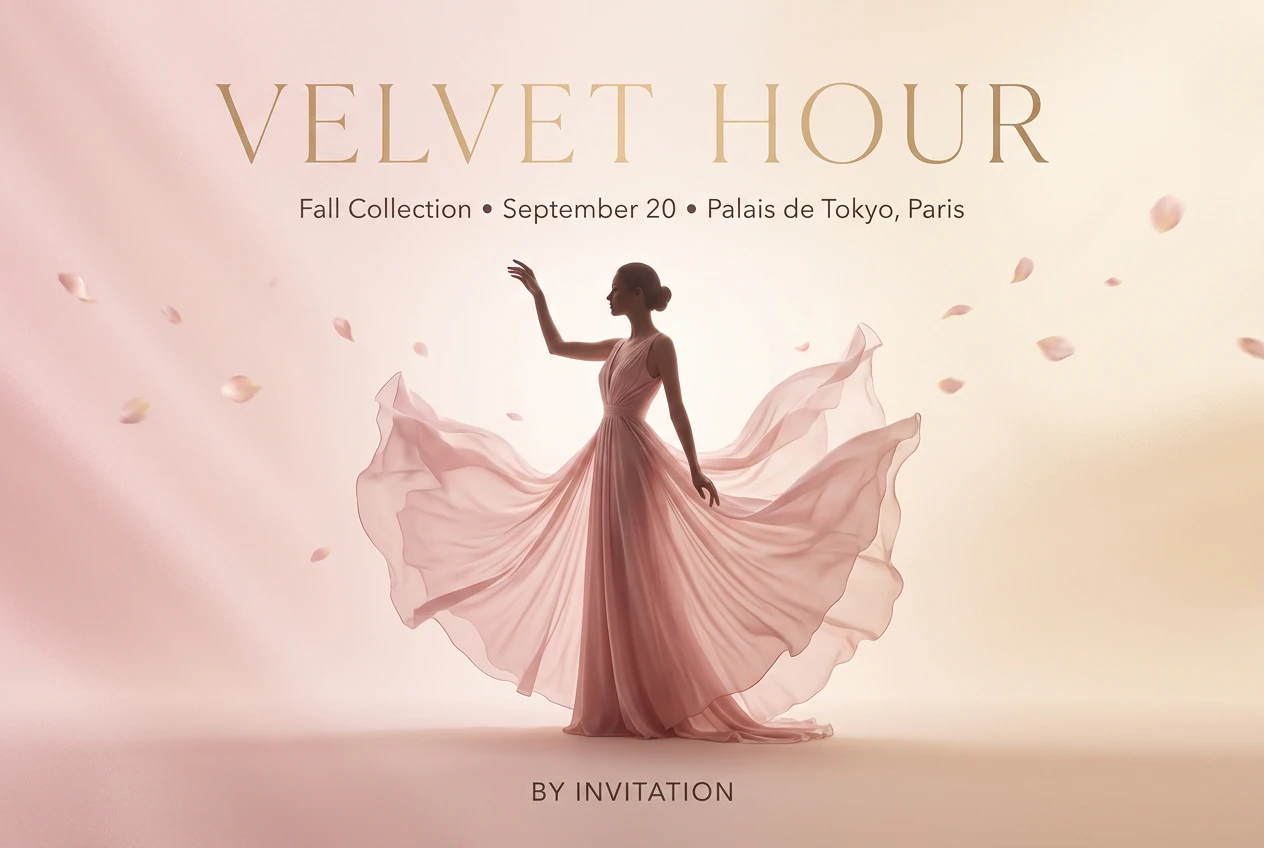
If you don't like the first variant, don't worry - there are several ways to get a new result:
- Refine your prompt - add details, rephrase the text, change the style.
- Change the aspect ratio - sometimes the composition fits better in a different format.
- Click the dice icon next to the "Random number" checkbox - the program will generate a new seed, and you'll get a different variant still matching the prompt.
- Try another model - each model interprets text and graphics in its own way.
Experiment until you find the perfect combination!
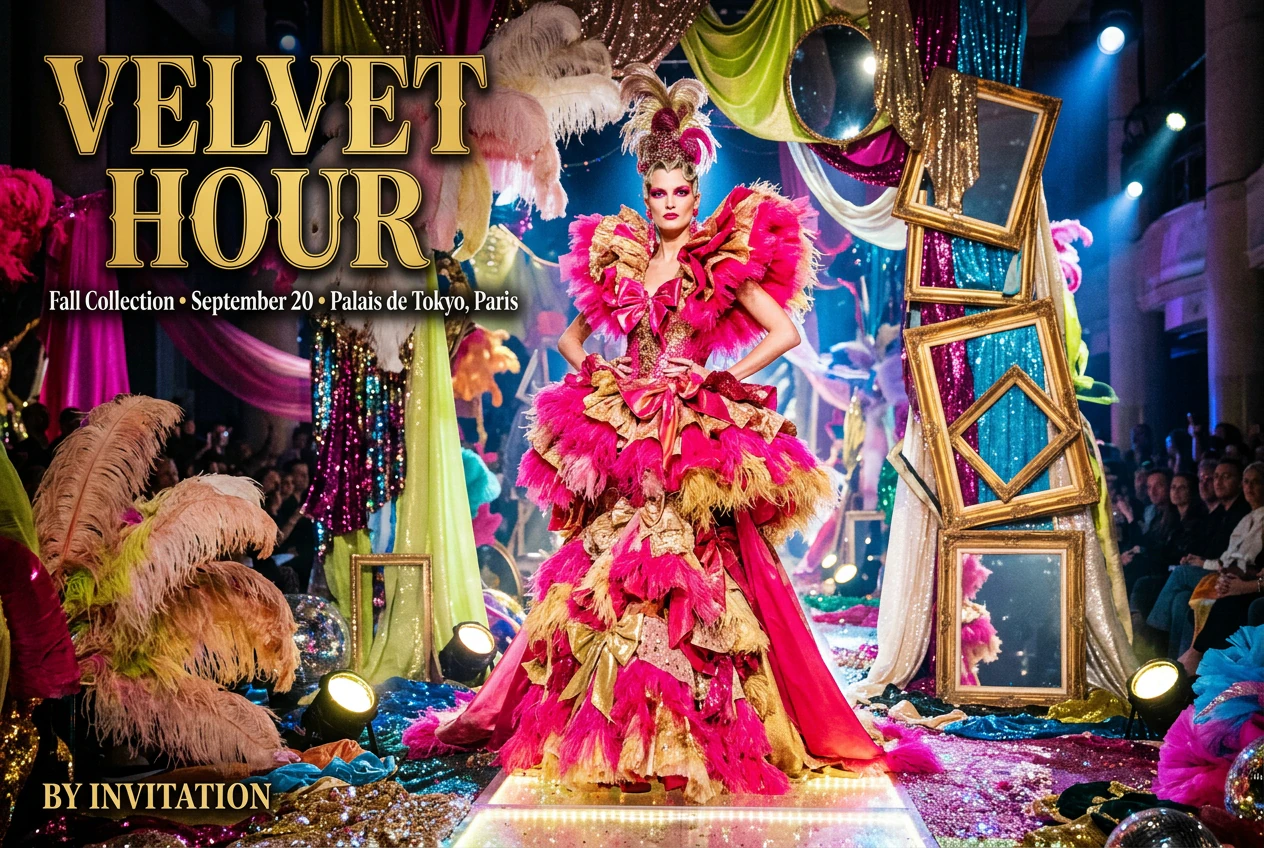
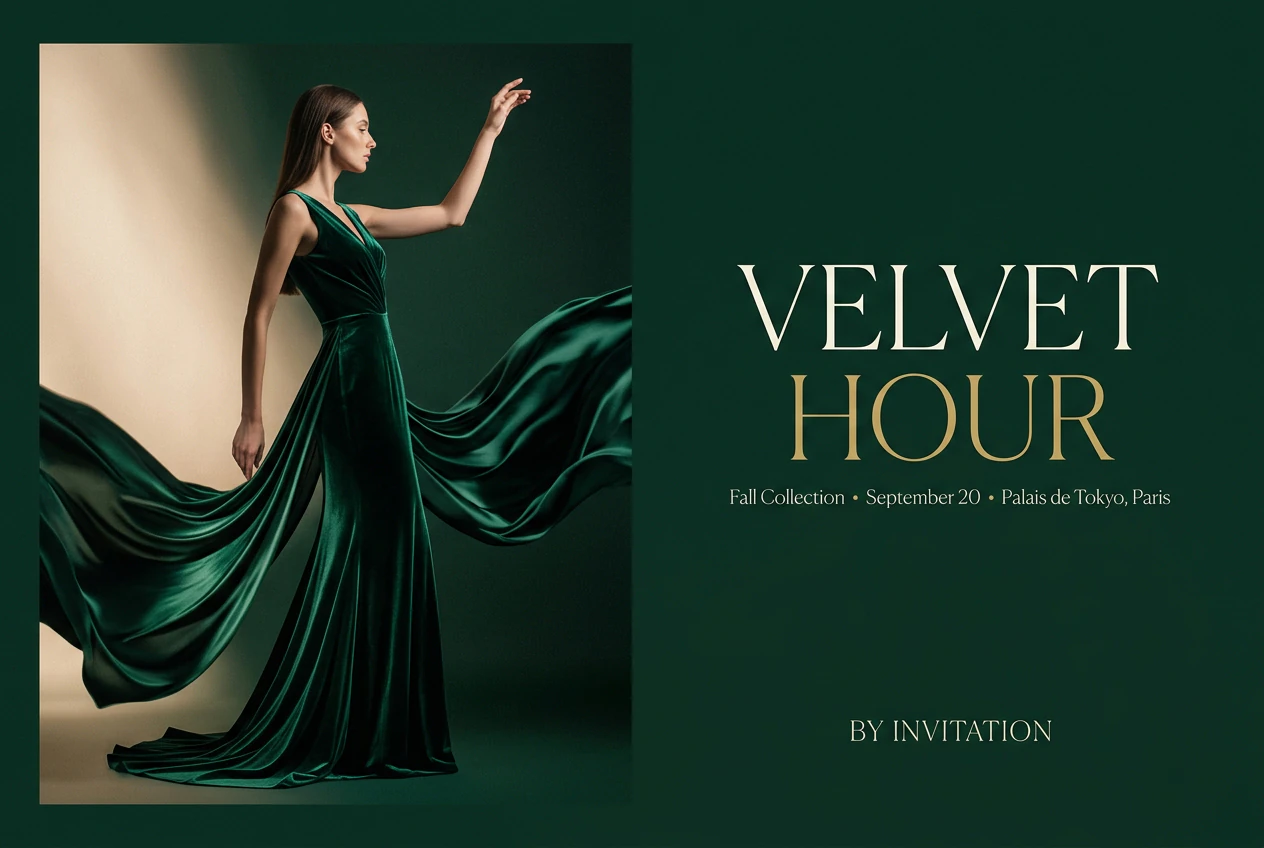
How to make the neural network render text correctly
The main challenge of generating promo materials is text. Neural networks often mix up letters, add extra symbols or distort words. Here are a few tricks to help you get a readable result:
- Write text in quotes. For example: headline "SUMMER FESTIVAL", subheadline "July 12 • Moscow", button "Buy tickets".
- Specify case. If you need uppercase letters - write "all letters uppercase."
- Limit the amount of text. The fewer words, the higher the chance the neural network won't make mistakes. Ideally - 3–5 short lines.
- Specify placement. "Headline centered at top," "button at bottom right," "date under the headline."
- Specify the font. "Bold sans-serif," "thin elegant font," "large blocky typography."
- Generate several variants. Even with a perfect prompt, one out of three generations will be noticeably better than the rest.
Important: if the neural network keeps making mistakes with text, generate the background and visual elements without any lettering, and then add the text manually in AliveColors using the Text tool  . It will take a couple of minutes, but the result will be perfectly readable.
Useful tips for promo generation
- Use ready-made references: if you have a successful competitor's banner or an example from Pinterest, describe it in words in the prompt - the neural network will understand the style.
- For social media, generate a series of 3–5 banners in the same style at once - this way the content will look cohesive.
- Don't forget about safe zones: leave margins from the edges so the text doesn't get cropped when published.
- Experiment with brand colors: add exact shades to the prompt, for example "#FF6B35 and #004E89."
- After generation, you can easily refine the banner in AliveColors: adjust contrast, add a logo, apply a filter.
- Save successful prompts to a separate file - they'll come in handy for future campaigns.
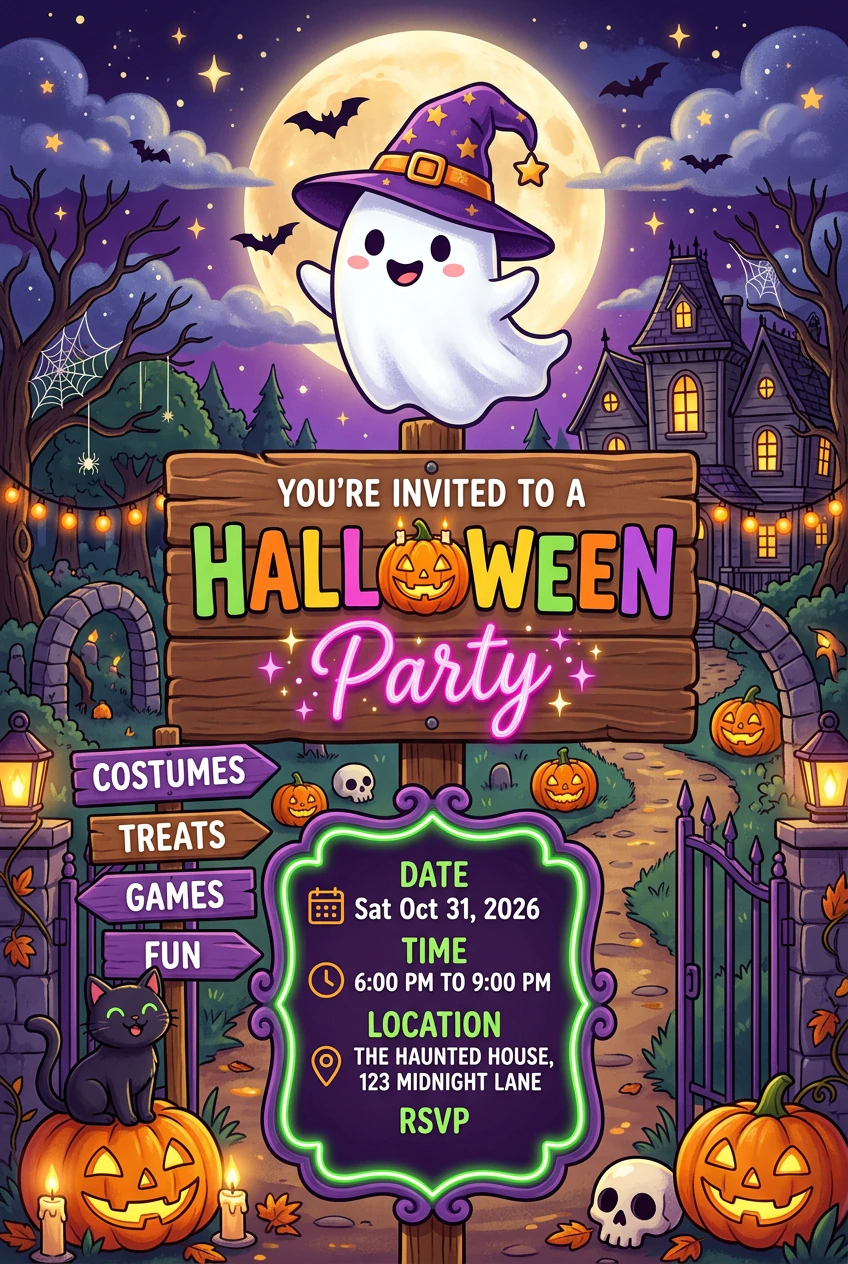
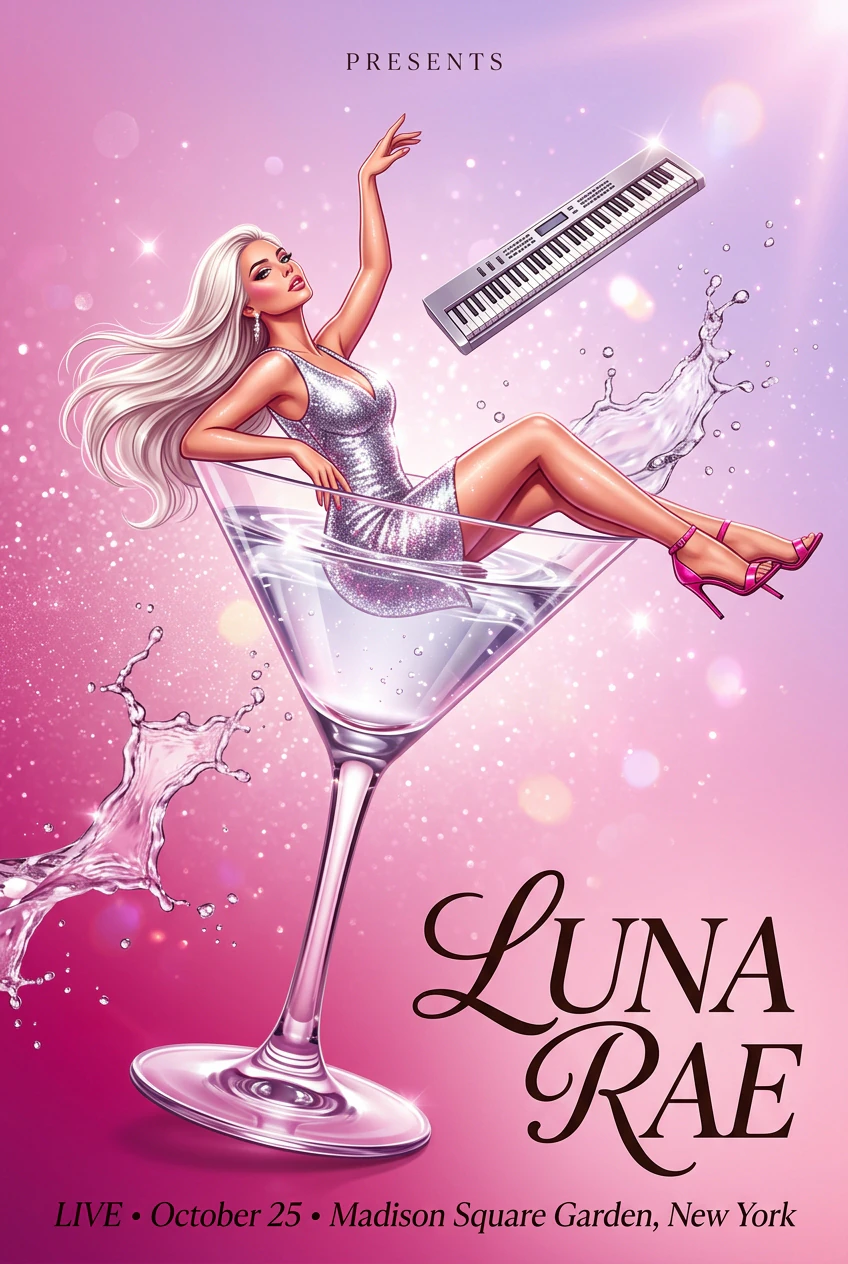
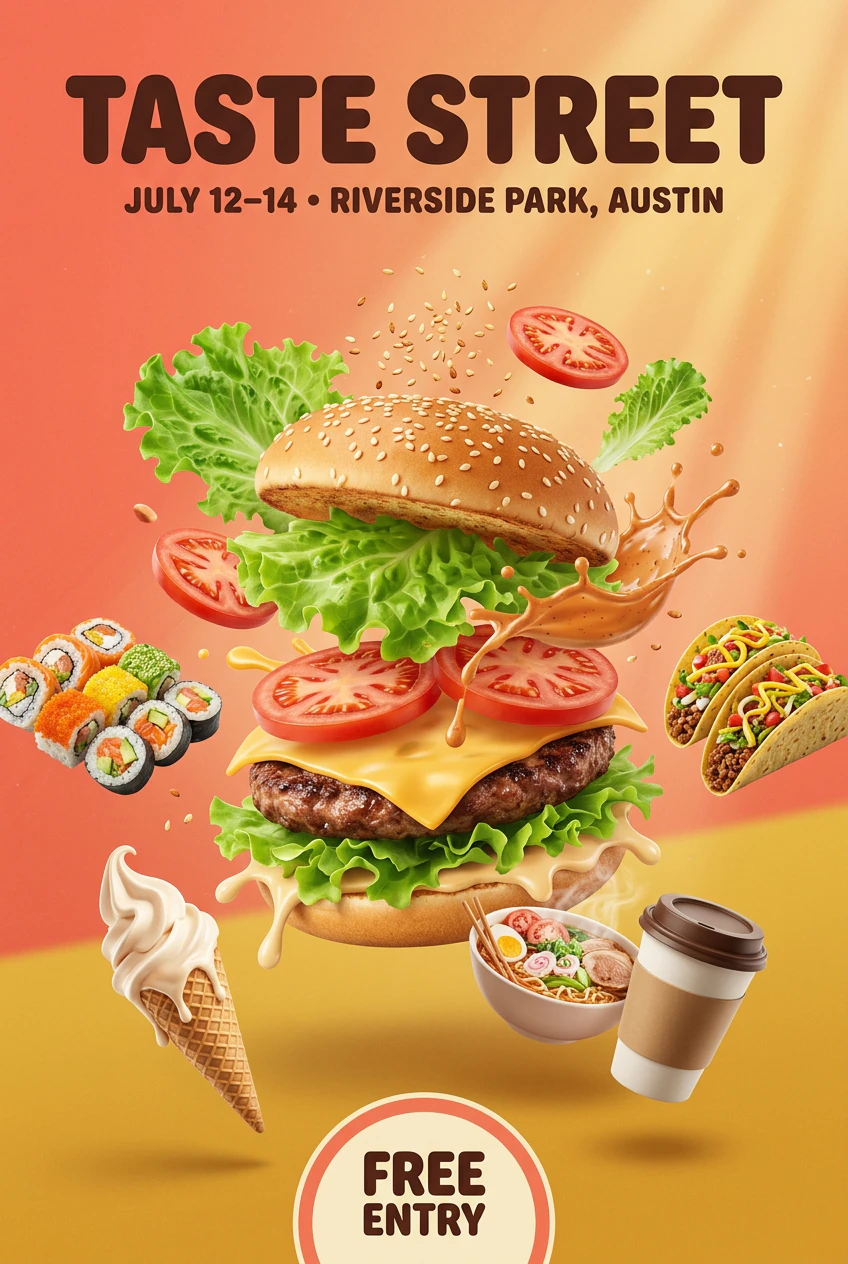
Now you know how to create ready-to-use promo materials with text right in AliveColors. Choose a model, adjust the settings and create banners for any task - from social media to print.