
Generación de imágenes local es un módulo de red neuronal diseñado para crear imágenes a partir de una descripción de texto (prompts). Puede generar una imagen completamente nueva o modificar una existente. Todos los modelos y archivos se almacenan localmente en su ordenador, por lo que no se requiere conexión a internet. Todo funciona en su propio hardware, no tiene que pagar por cada imagen que genere.
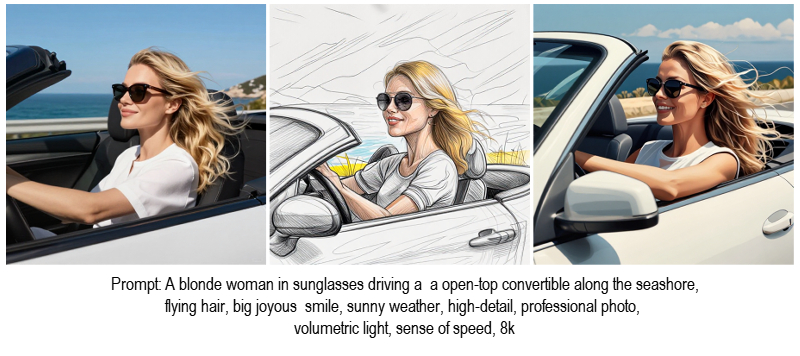 Generación de imágenes AI con diferentes modelos LoRA
Seleccione en el menú: AI → Generación de imágenes local. Se mostrarán los ajustes de generación. Los parámetros y sus valores pueden variar según el modelo.
La versión actual es compatible con los siguientes modelos: Z-Image-Turbo, Z-Image-Turbo-CyberRealistic-v7, ERNIE-Image-Turbo, RealVisXL-v5-Lightning, DreamShaperXL-Lightning.
En la parte inferior del cuadro de diálogo, se encuentra el panel Resultados, que contiene miniaturas de las imágenes generadas. Al hacer doble clic en una miniatura, el resultado se fija al panel y no desaparecerá la próxima vez que ejecute la generación.
Prompt:
Prompt. Introduzca una descripción detallada de la imagen que desea generar. Puede escribir las indicaciones en cualquier idioma. Sin embargo, para descripciones complejas y detalladas, el inglés ofrece mayor precisión.
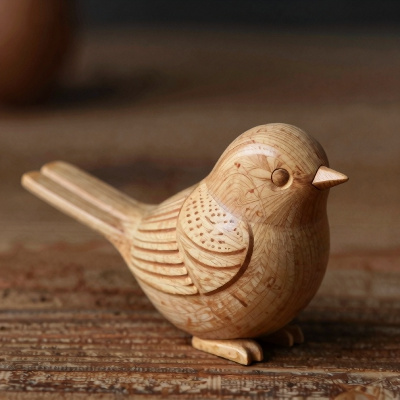 Prompt = "Wooden Bird"
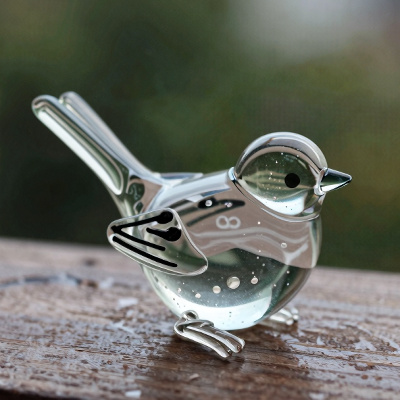 Prompt = "Glass Bird"
Prompt negativo. Añada descripciones de los elementos u objetos que no deben incluirse en la imagen generada. El modelo Z-Image-Turbo no utiliza una indicación negativa.
Nota: Puede consultar las recomendaciones para redactar un prompt.
AKVIS y su software, AliveColors, no se responsabilizan de las imágenes generadas mediante modelos de AI de terceros. Los usuarios son responsables de revisar y cumplir con los términos de uso, las condiciones de licencia y las políticas de contenido de los respectivos proveedores de modelos de AI. Más información.
Máscara. La imagen se generará únicamente en el área seleccionada.
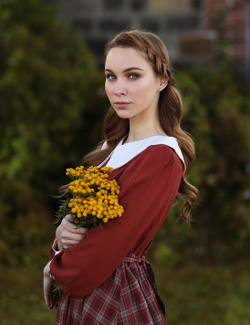 Imagen original
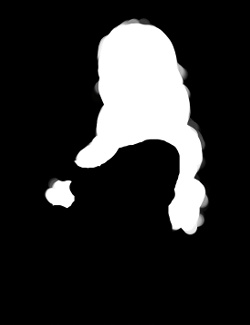 Máscara
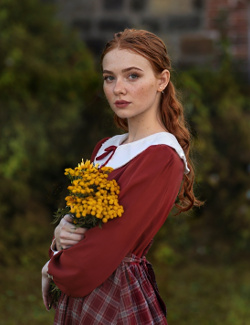 Generación de imagen mediante máscara
Mostrar máscara. La casilla de verificación activa/desactiva la visibilidad de la máscara, y la lista desplegable permite cambiar el tipo de visualización.
Usar máscara. Esta opción permite generar dentro del área seleccionada. Cuando está desactivada, la generación se realiza en toda la imagen.
Desenfoque de máscara (-100..100%). Al aumentar el parámetro, la máscara se expande y sus bordes se desenfocan, proporcionando una transición suave (con valores positivos, el desenfoque se extiende hacia afuera; con valores negativos, hacia adentro).
Área de trabajo. Seleccione la región de la que se extraen los datos de la imagen de origen para la generación:
Auto. Se selecciona automáticamente una de las siguientes opciones.
Capa. Todo el contenido de la capa ráster seleccionada.
Opacidad. El contenido opaco de la capa ráster activa.
Selección. El área seleccionada de la capa ráster activa.
Aumentar el área de generación (0-100%). Aumenta la indentación desde el borde del área seleccionada (como porcentaje del tamaño de la selección original).
Configuración de generación  .
.
Modelo. Seleccione un modelo para la generación de imágenes.
Z-Image-Turbo. Modelo universal. Rápido. Resultados de alta calidad. Admite generación de texto. No admite indicaciones negativas.
Z-Image-Turbo-CyberRealistic-v7. Centrado en el fotorrealismo. Rápido. Resultados de alta calidad. Admite generación de texto. Estilo más europeo. No admite indicaciones negativas. Mayor riesgo de artefactos.
ERNIE-Image-Turbo. Modelo universal. Rápido. Resultados de alta calidad. Generación de texto mejorada. Estilo más asiático. No admite indicaciones negativas. Más exigente.
RealVisXL-v5-Lightning. Centrado en el fotorrealismo. Muy rápido. Menos exigente. Calidad de resultado media. Admite indicaciones negativas. No admite generación de texto ni ilustraciones.
DreamShaperXL-Lightning. Centrado en la ilustración y el arte. Rápido. Menos exigente. Calidad de resultado media. Admite indicaciones negativas. No admite generación de texto.
Tamaño (512-2048). Tamaño del lado más largo de la imagen generada. La relación de aspecto coincide con la del documento sobre el que se aplicó el filtro.
Fuerza (0.00-1.00). Impacto del contenido de la imagen original en el resultado generado. Si el valor es 1, la imagen original se ignora por completo.
Para crear una imagen desde cero, establezca Fuerza = 1. Para incrustar (reemplazar) parte de la imagen de forma natural, establezca el valor en 0.8.
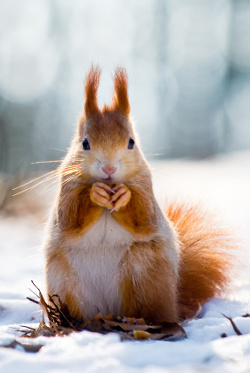 Imagen original
(Squirrel)
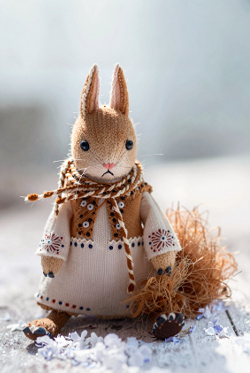 Fuerza = 0.6
Prompt = "Knitted Doll"
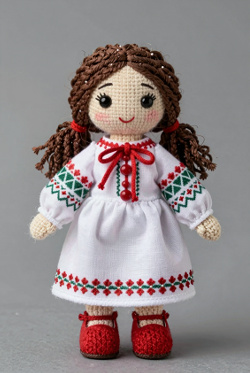 Fuerza = 1.0
Prompt = "Knitted Doll"
Limitar la fuerza. Si la casilla de verificación está habilitada, se omitirán los valores de Fuerza con resultados de generación similares.
Nota: Solo se activa cuando la casilla de verificación Pasos (abajo) está habilitada. Cuanto mayor sea el valor de Pasos, menor será el incremento de Fuerza.
Resultados (1-8). El número de resultados que se generarán en un solo cálculo.
 Resultados = 6
Pasos. El número de pasos de generación. Cuantos más pasos, mayor será el detalle y mayor el tiempo de generación de la imagen.
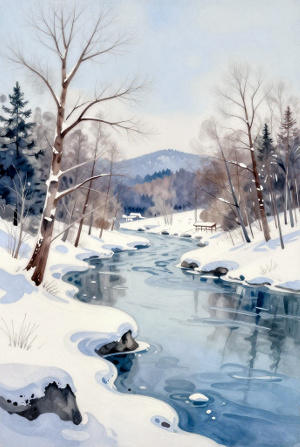 Pasos = 5
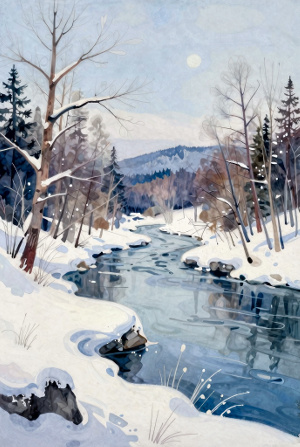 Pasos = 25
Aleatorio (0-999999). Número inicial para la generación de imágenes. Si la casilla de verificación está activada, puede establecer un número específico; si está desactivada, se seleccionará un número aleatorio cada vez.
Precisión. Cuanto menor sea el valor, más inventa la red neuronal la imagen. Cuanto mayor sea el valor, con mayor precisión intenta seguir la descripción textual.
- Prompt: "Young girl in a light dress, sunglasses in her hair, large earrings, with a cup of coffee in a summer street cafe, high-detail, professional photo, volumetric lighting, soft focus, 8K"
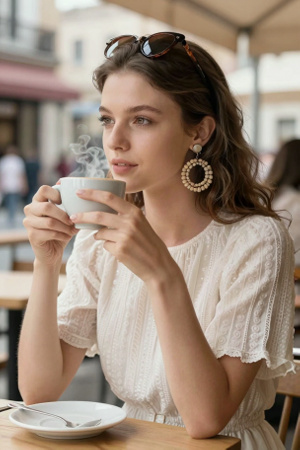 Precisión = 0.8
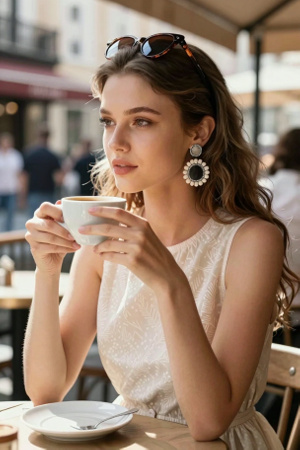 Precisión = 1.5
Método de selección. En la lista desplegable, seleccione el algoritmo principal de generación de imágenes.
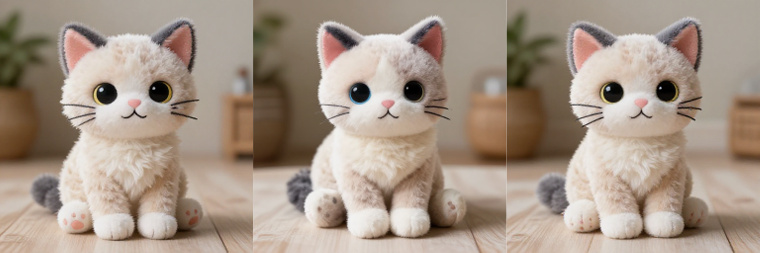 Opciones de método de selección
Planificador. En la lista desplegable, seleccione el algoritmo auxiliar de generación de refinamiento.
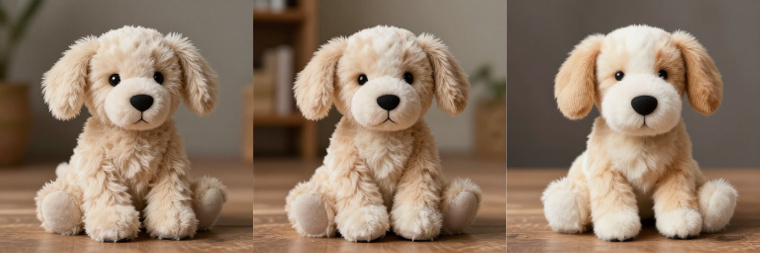 Opciones de planificador
Puede guardar la configuración y prompts de generación como Presets. Haga clic en  para ver la lista de presets disponibles o para guardar su propia configuración.
Modelo LoRA (LoRA - Low-Rank Adaption). Los módulos complementarios compactos y rápidos, entrenados sobre la red neuronal principal. Permiten añadir estilos, caracteres u objetos específicos sin necesidad de reentrenar todo el modelo.
Active las casillas de verificación para seleccionar los modelos LoRA que se aplicarán al resultado de la generación.
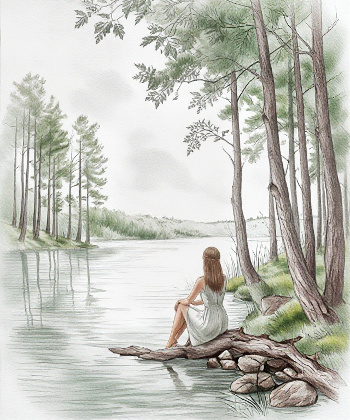 Dibujo a lápiz
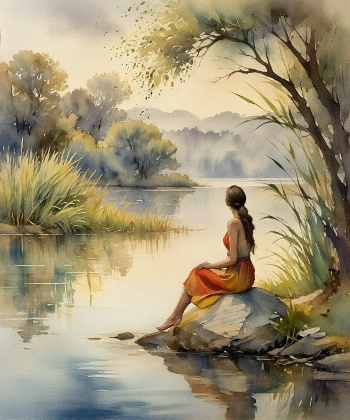 Pintura de acuarela
Influencia (0.1-2.0). La influencia del modelo en el resultado de la generación.
Opciones del servidor (opcional). Permite delegar el proceso de generación de imágenes a otro equipo más potente.
Nota: La transferencia de la generación a otro equipo solo es posible con una licencia Business.
Nombre. Nombre del servidor.
Dirección. Dirección IP o nombre de dominio del equipo.
Puerto. Puerto de acceso.
Haga clic en el botón Arrancar para comenzar a generar una imagen a partir de la descripción de texto.
Haga clic en el botón Cancelar para detener el proceso de generación.
Haga clic en el botón Guardar para abrir el resultado seleccionado en la ventana del editor de imágenes. Si hay varios resultados anclados, se abrirán en un solo documento como capas separadas. Seleccione Guardar como nuevo para abrir los resultados en un documento nuevo; si la casilla de verificación está desactivada, se abrirán en el documento original.
Haga clic en el botón Salir para cerrar el cuadro de diálogo de Generación de imágenes sin aceptar los cambios.